
Tools
External tools with variables, port scan, Wake-on-LAN, reachability indicators and the session log.
External tools
Under external tools (the wrench in the sidebar) you register programs you want to start with a connection's data – ping, traceroute, WinSCP, a browser with a specific URL or a script of your own.
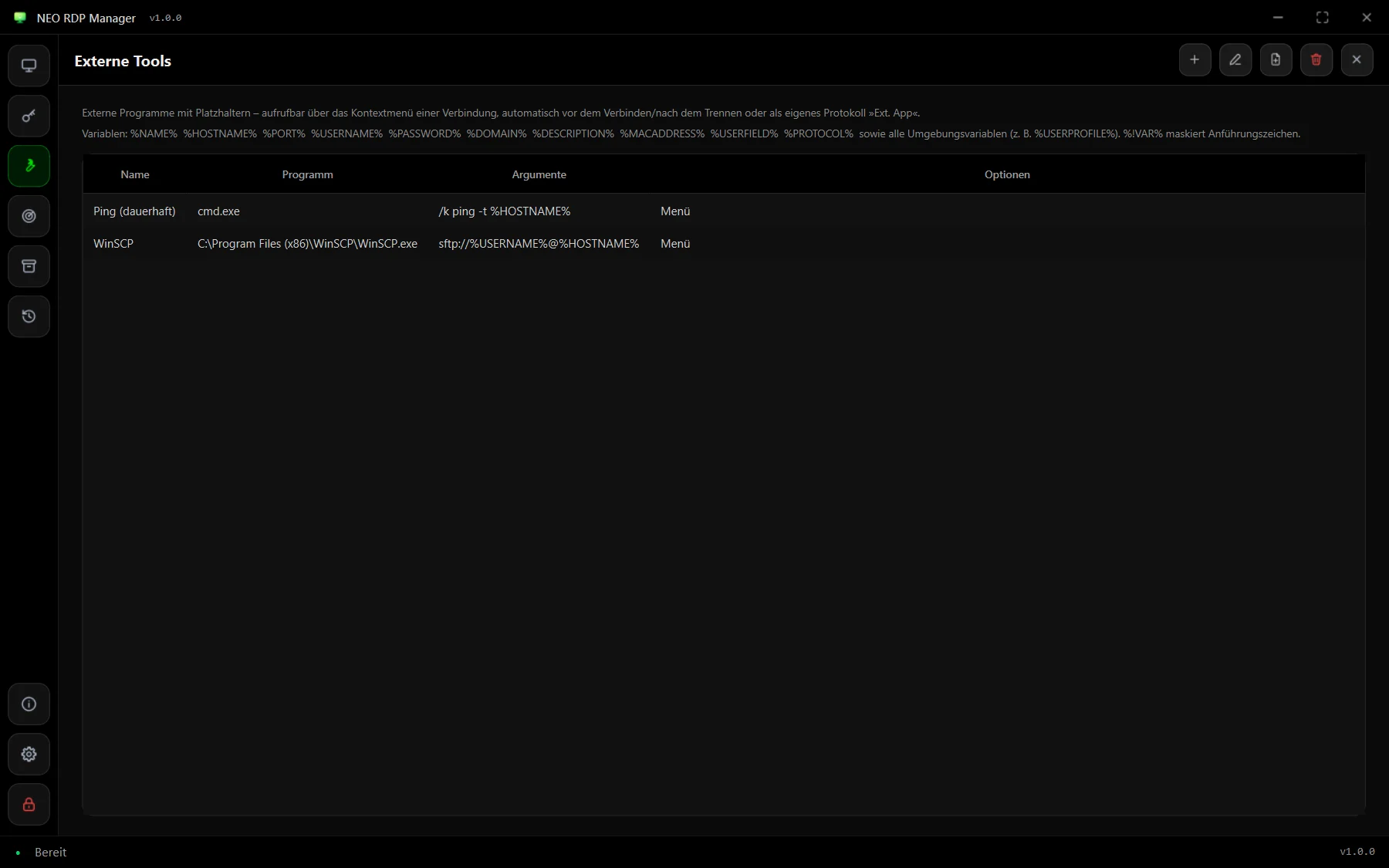
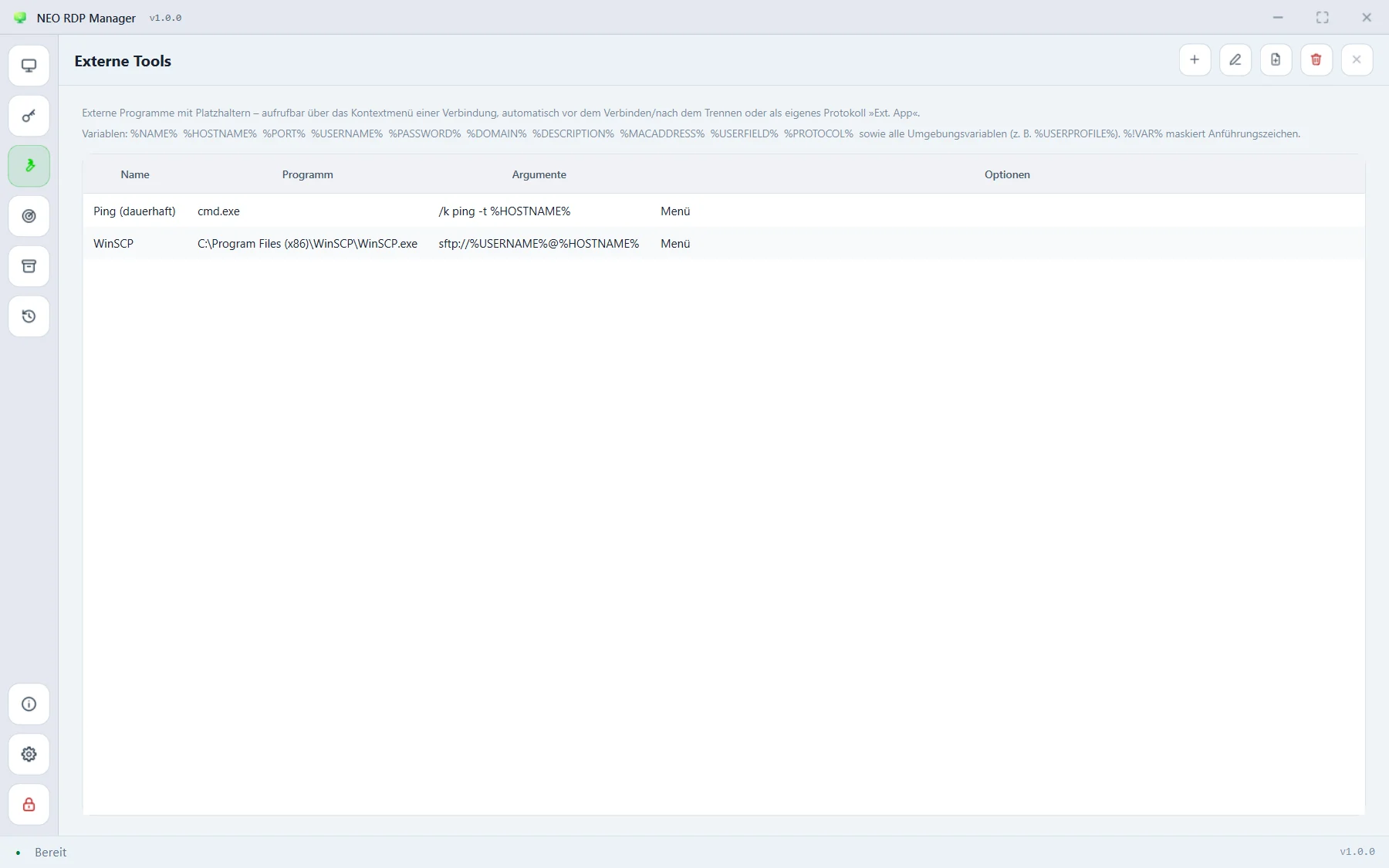
Every tool has a program, arguments and a working directory, plus these options:
- Wait until it exits – useful for tools before connecting, such as bringing up a VPN.
- Embed – the tool's window appears as a tab in NEO RDP Manager.
- Run as administrator – with a UAC prompt.
- Show in menu – appears in every connection's context menu under “external tools”.
A tool can be started from the context menu, automatically before connecting or after disconnecting (the “tool before connecting”/“tool after disconnecting” fields of the connection) or as a protocol of its own, Ext. App.
Variables
In program, arguments and working directory the app replaces these placeholders with the connection's values – compatible with mRemoteNG:
| Variable | Value |
|---|---|
%NAME% | connection name |
%HOSTNAME% · %PORT% | host and port |
%USERNAME% · %DOMAIN% | user and domain (inherited ones too) |
%PASSWORD% | password in plain text – only use it if the tool really needs it |
%DESCRIPTION% · %USERFIELD% | description and user field |
%MACADDRESS% · %PROTOCOL% | MAC address and protocol |
%PUTTYSESSION% | the connection's PuTTY session |
%USERPROFILE% etc. | unknown names are resolved as Windows environment variables |
Notations as in mRemoteNG: %!VAR% escapes quotes in the value with a backslash, %-VAR% takes the value unchanged.
cmd.exe     /k ping -t %HOSTNAME%
WinSCP.exe  sftp://%USERNAME%@%HOSTNAME%:%PORT%/
mstsc.exe   /v:%HOSTNAME% /admin
Port scan
The port scan (radar icon) searches hosts or address ranges for open services – like “Port Scan” in mRemoteNG:
- Hosts / range:
192.168.1.1-254,10.0.0.0/24orsrv1, srv2. - Ports: pre-filled with
22, 23, 80, 443, 3389, 5900, 5985; ranges such as8000-8100work too. - Timeout and, if you like, resolve host names via DNS.
Hits appear with name, open ports and the suggested protocol. Tick the hits you want, pick a different protocol if needed and click Create selected as connections – they appear in the list right away.
Wake-on-LAN
Enter the connection's MAC address under Advanced. After that, “Send Wake-on-LAN” in the context menu or the details wakes the computer with a magic packet (broadcast, UDP port 9). A few seconds later the reachability dot shows whether it has booted.
Reachability
In the background the app regularly checks whether each connection's port answers and colours the dot on the tile green or red. Only a TCP connection is opened – no login, so no failed attempts in security logs. F5 checks right away; interval and on/off are in the settings. The “reachable” and “not reachable” views filter by it.
Session log
The session log (clock icon) lists every connection with start, duration, result and details – including web interfaces opened in the browser. It can be exported as CSV and cleared.