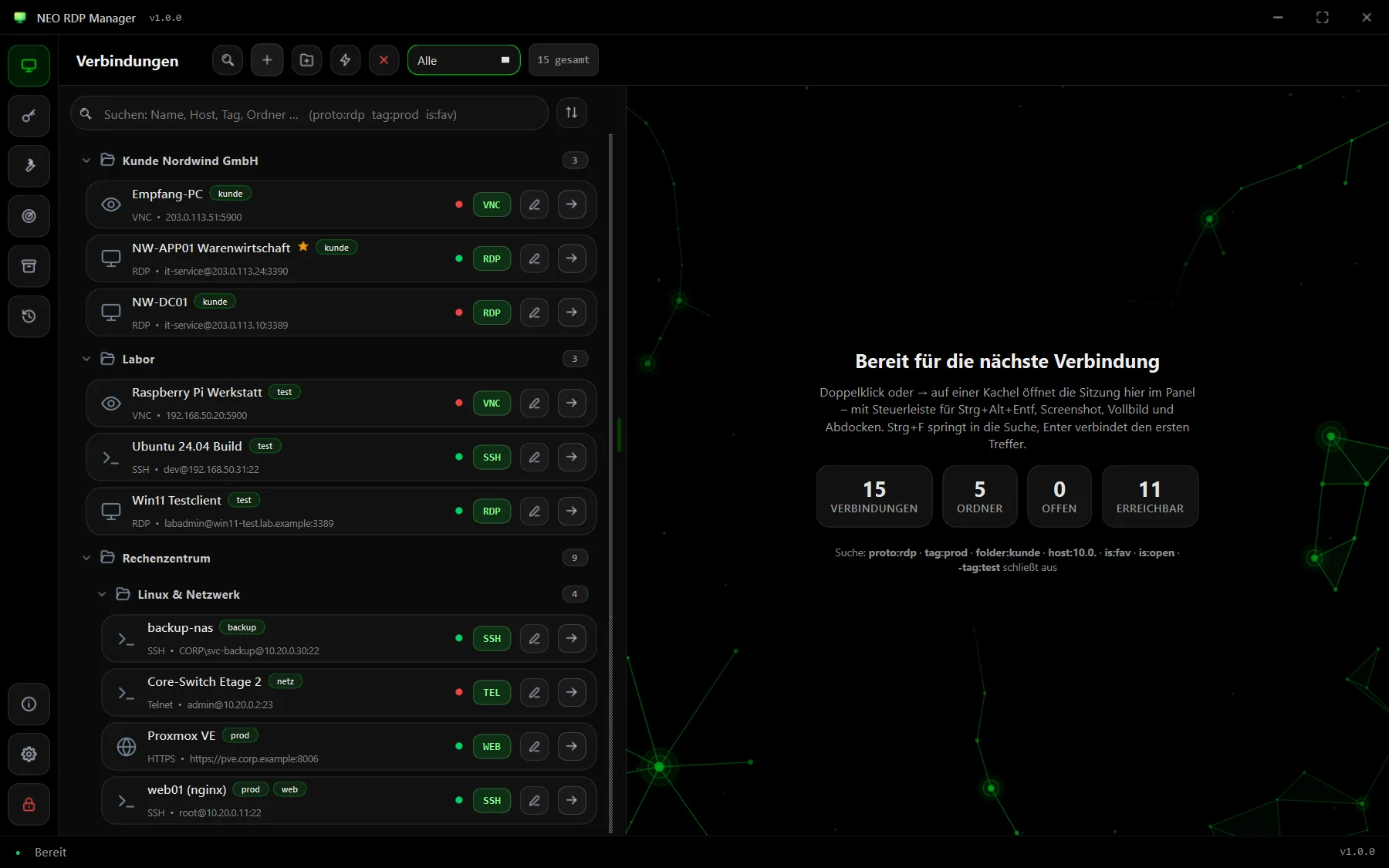
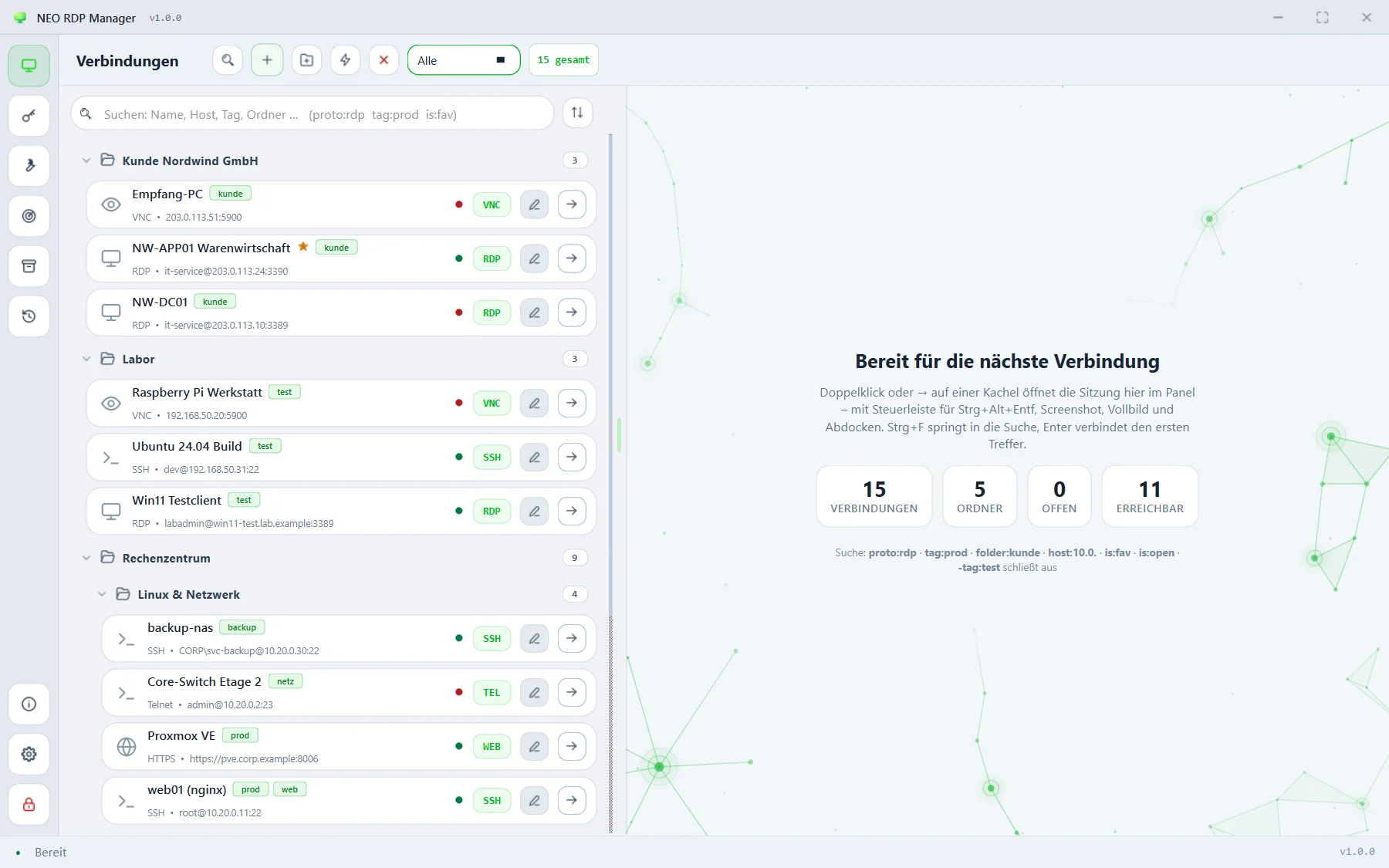
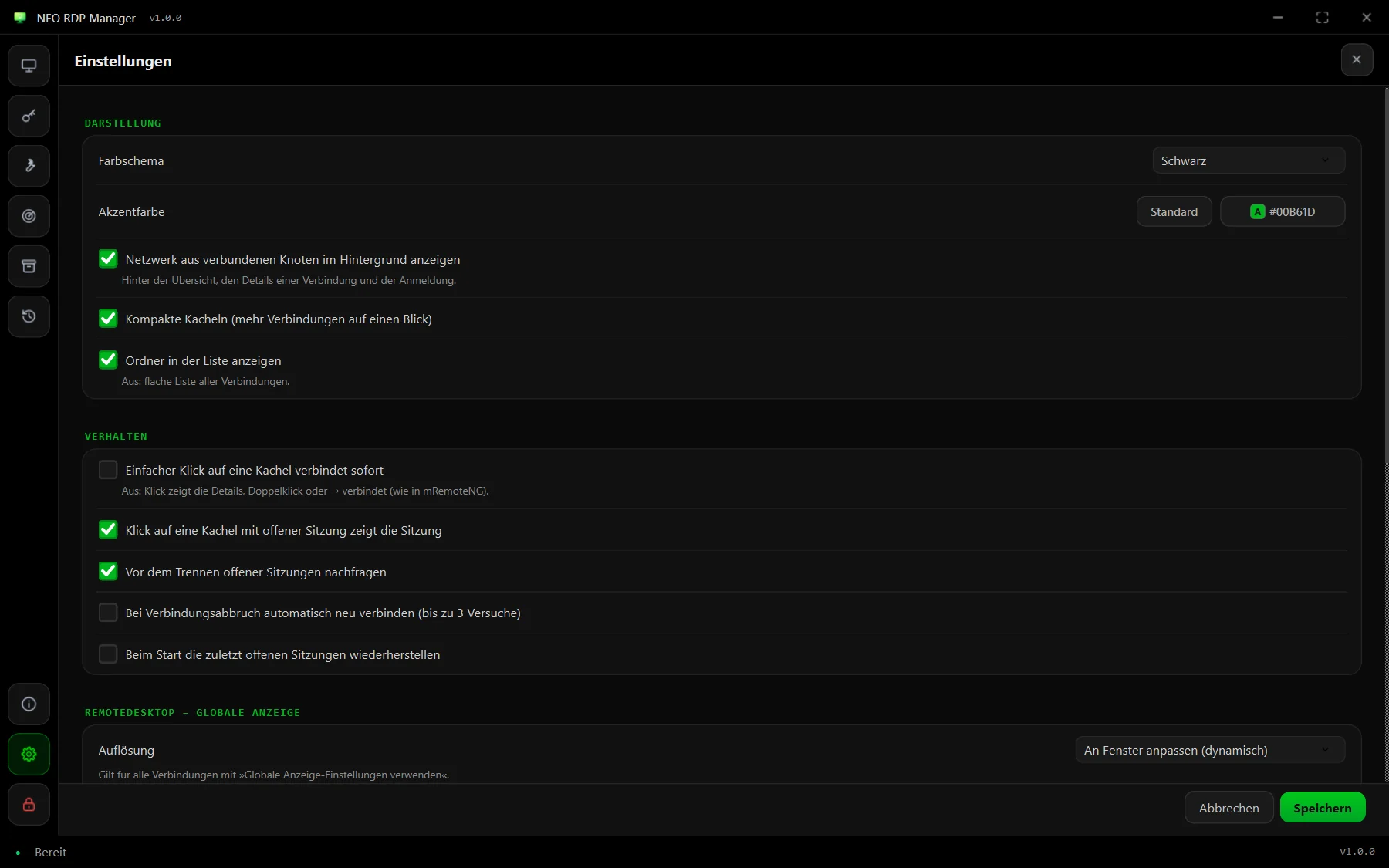
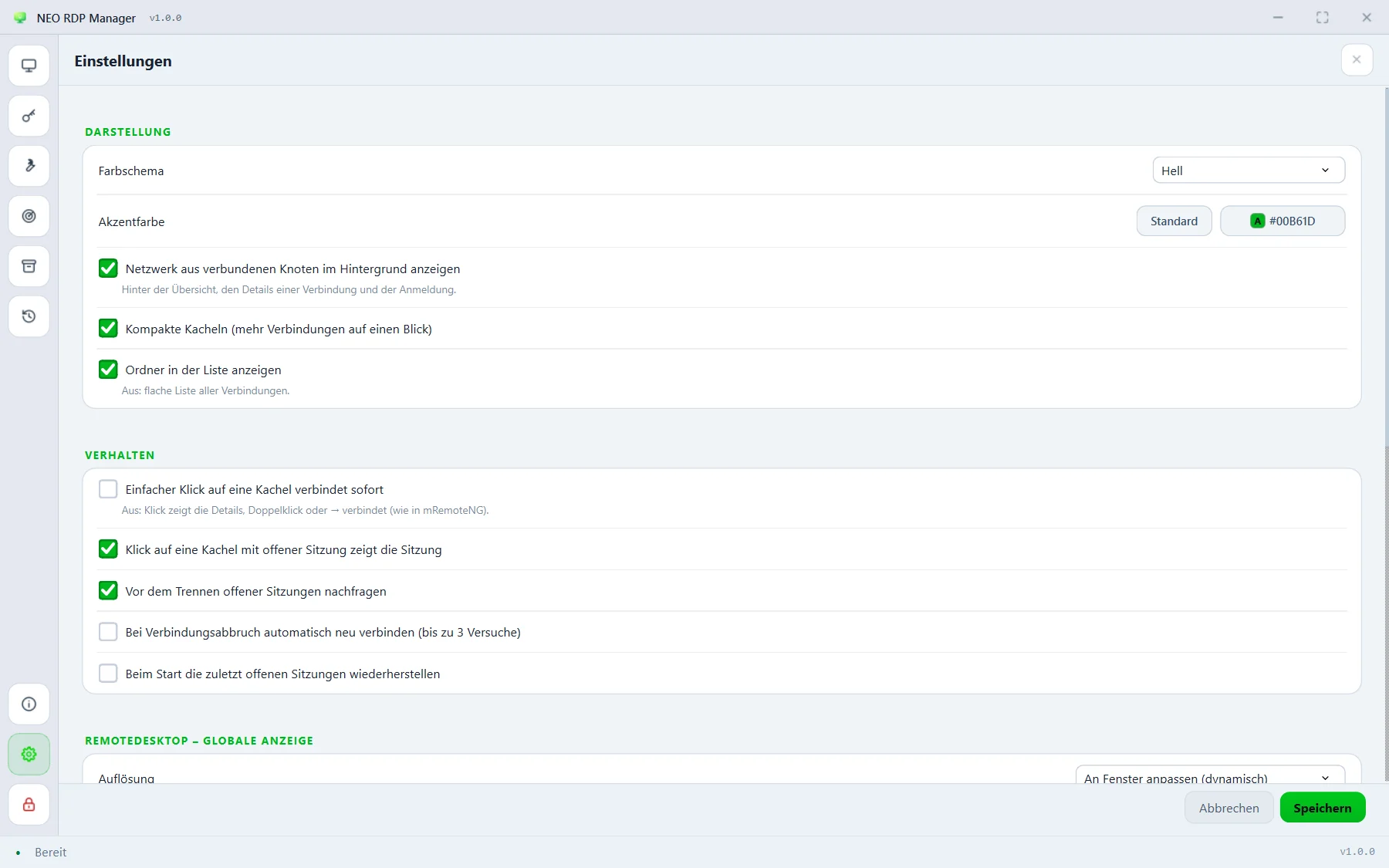
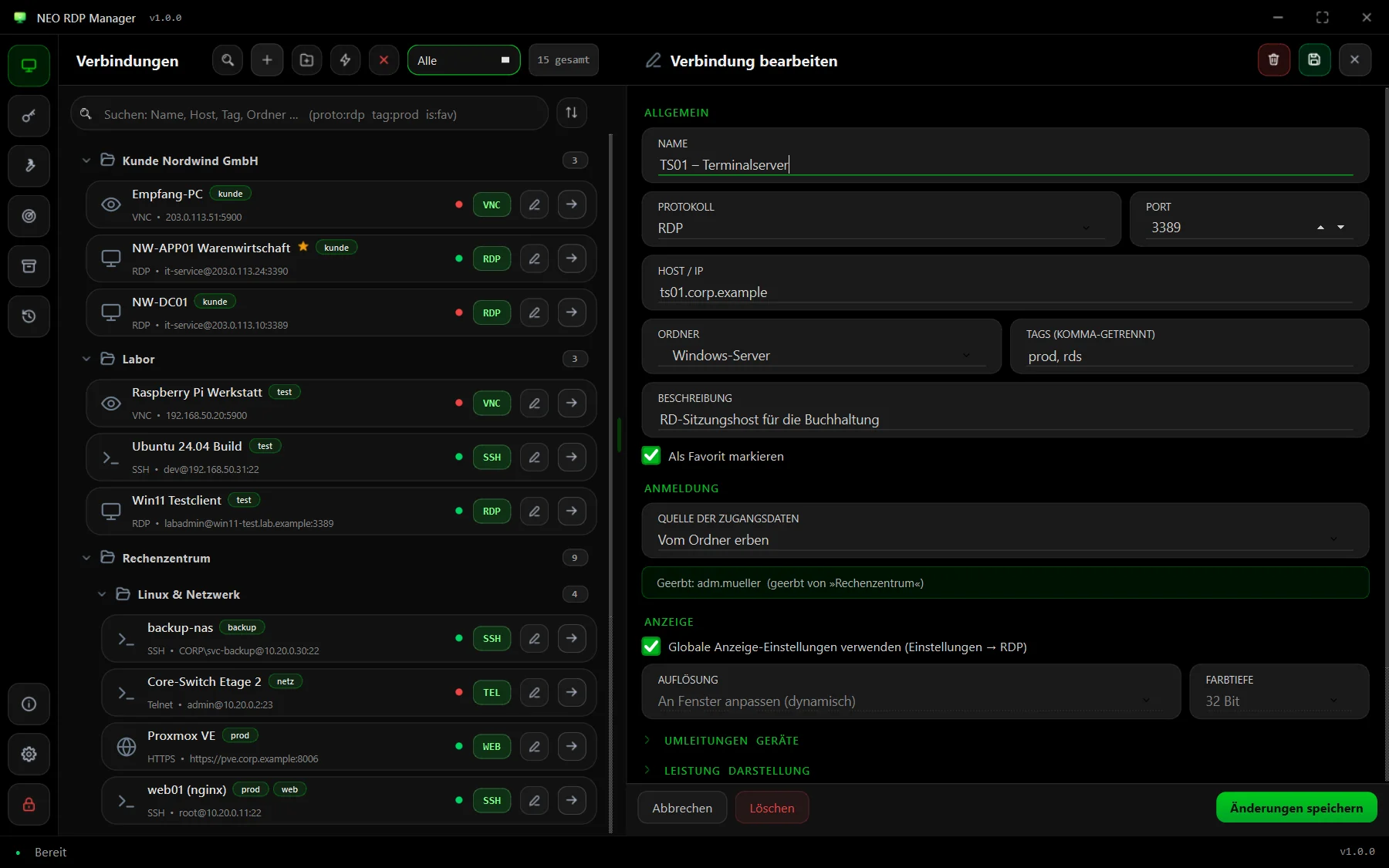
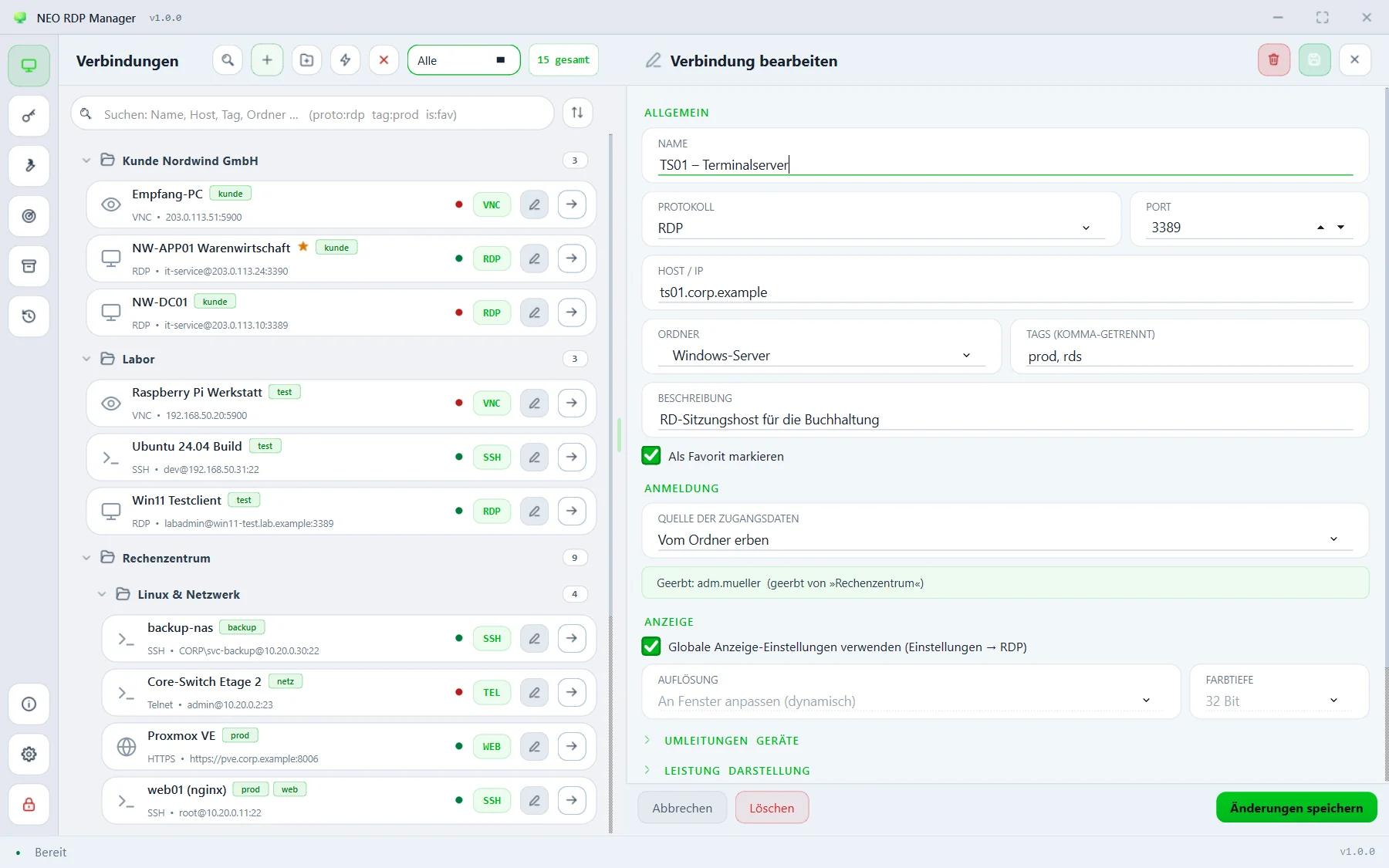
Every NEO RDP Manager feature at a glance – from embedded RDP sessions to the vault and the tools.
Remote Desktop
Every RDP session is Windows' real Remote Desktop Connection, embedded in the NEO RDP Manager window.
Fit to window (dynamic), fixed resolution, fixed resolution scaled (smart size), full screen or all monitors – set globally or per connection.
The scale button switches size adjustment of a running session on and off – in the panel, in full screen and in detached windows.
F11 sends the session to full screen; a bar with every control slides in at the top. Back you go with the button, F11 or Esc.
Detach sessions into windows of their own, for example on a second monitor, and dock them back at any time. Ctrl+B hides the list to make room.
Send Ctrl+Alt+Del, save a screenshot, reconnect, full screen, detach and disconnect – right above every session.
Drives, printers, clipboard, smart cards, COM ports, plug-and-play devices and audio; plus colour depth, wallpaper, font smoothing and connection speed.
Network Level Authentication (NLA), behaviour on certificate errors and connecting to the console session (/admin).
RD Gateway with the same or its own credentials, a start program with working directory, RemoteApp and load balance info for session host farms.
No “Unknown remote connection” dialog on every start – the options reach mstsc briefly through Default.rdp.
Protocols
Every protocol you know from mRemoteNG – each session as a tab in the same window.
A built-in terminal with colours, password or key login, agent forwarding, keepalive and a startup command. New host keys are shown with their fingerprint, changed ones trigger a warning.
Telnet logs in automatically when credentials are stored, RAW opens a bare TCP connection. Rlogin runs through PuTTY in an embedded window.
A built-in VNC client with VNC authentication, scaling to the window size, view-only mode and clipboard in both directions.
PowerShell remoting via Enter-PSSession over WinRM (5985/5986) in an embedded console.
Web interfaces of hypervisors, switches or firewalls open in your default browser – with port and path from the connection.
Any program as a protocol of its own – embedded in the window if you like. With variables for host, user, password and more.
For several terminals at once: “Send text to all terminal sessions” in a tab's context menu. More about the protocols →
Organisation
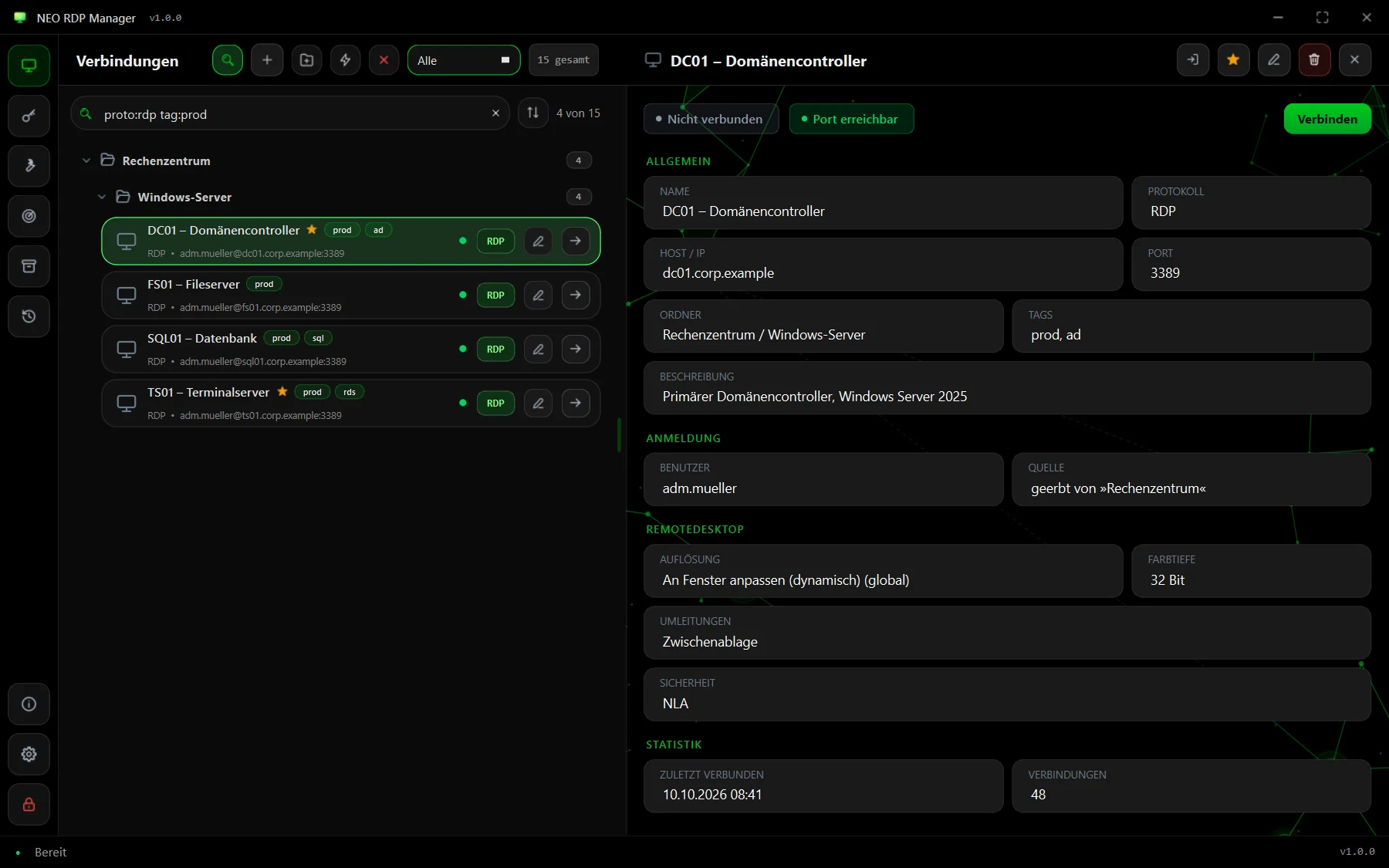
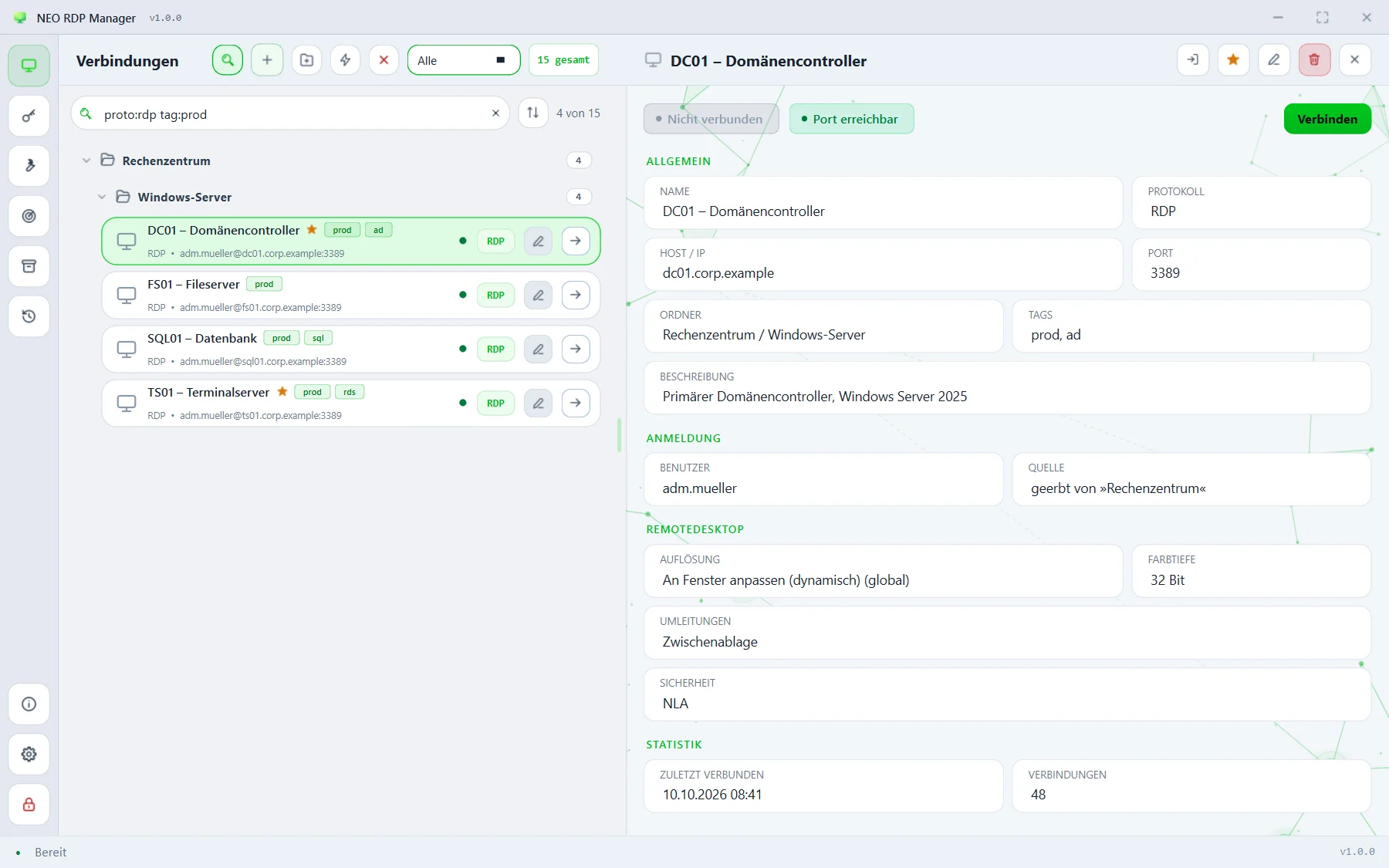
proto:rdp tag:prod shows only the production RDP servers – Enter connects to the first hit.Folders of any depth whose headers show “open/total” and expand or collapse. Drag tiles and folders to where they belong.
Credentials stored on a folder apply to every connection below it – across any number of levels. The details show where they come from.
Tags such as prod or customer appear on the tile and can be filtered. Favourites get a star.
Favourites, recently used, open sessions, reachable or not, per protocol and per tag. Sorted by name, most recent, most frequent or host.
Press Ctrl+Q and type ssh root@host:22 or https://… – connected right away, saved too if you like.
If you like, the app reopens the sessions that were open when you quit and reconnects automatically after a drop.
Security
scrypt derives the key from the master password, and every password is encrypted on its own with AES-256-GCM. You can change the master password without re-encrypting everything.
After a configurable idle time the window locks together with its sessions – they keep running in the background. Ctrl+L locks right away.
Create a domain admin or service account once and use it in as many connections as you like. When the password changes, you change it in one place.
RDP passwords only reach the Windows Credential Manager while the connection is set up – never an .rdp file or a log.
SSH remembers your servers' keys. If one changes, the app warns you before you log in.
A copy of the database in one click – the passwords inside stay encrypted with the master password.
Tools
Programs with variables such as %HOSTNAME%, %USERNAME% or %PASSWORD% – from the context menu, before connecting or after disconnecting, as administrator if needed.
Check hosts or address ranges for open ports and turn the hits straight into connections – with the matching protocol.
Store the MAC address on the connection and wake the computer before you connect.
A dot on every tile shows whether the port answers; F5 checks right away. No login is attempted.
When you connected where and for how long – with success or error, exportable as CSV.
mRemoteNG, RDCMan, .rdp, PuTTY, Active Directory and CSV in; confCons.xml, CSV and .rdp per connection back out.
Design
Four colour schemes, an accent colour of your choice, compact or large tiles and a subtle network of nodes in the background – all in the settings.