
The interface
Tiles, search, views and sessions – and how to do most of it without a mouse.
Tiles
Every connection is a tile. From left to right it shows:
- an icon for the kind of connection (monitor for RDP, prompt for terminals, eye for VNC, globe for web),
- the name, a star for favourites and the tags, below them protocol and
user@host:port, - a reachability dot – green when the port answers, red when it doesn't,
- the protocol badge (RDP, SSH, VNC, TEL, WEB, PS, APP …), the pencil for editing and the arrow for connecting.
Tiles with an open session are highlighted. “Compact tiles” in the settings fit more connections on screen. The list is virtualised: even with 1,000 connections it builds up in about a second.
Search with filters
Ctrl+F jumps into the search. Free words may come in any order, and case and accents don't matter; it searches name, host, tags, folder, user and description. On top come filters:
| Filter | Finds |
|---|---|
proto:rdp | connections of one protocol (rdp, ssh, vnc, telnet, powershell, https …) |
tag:prod | connections with this tag |
folder:customer | connections in folders whose name contains the word |
host:10.0. | hosts containing the string |
user:admin | connections with this user |
port:3390 | connections on this port |
is:fav · is:open | favourites · connections with an open session |
-tag:test · -old | a leading minus excludes |
Enter connects to the first hit right away, ↓ jumps into the list, Esc clears the search. Next to the field you see how many connections match (“4 of 15”).
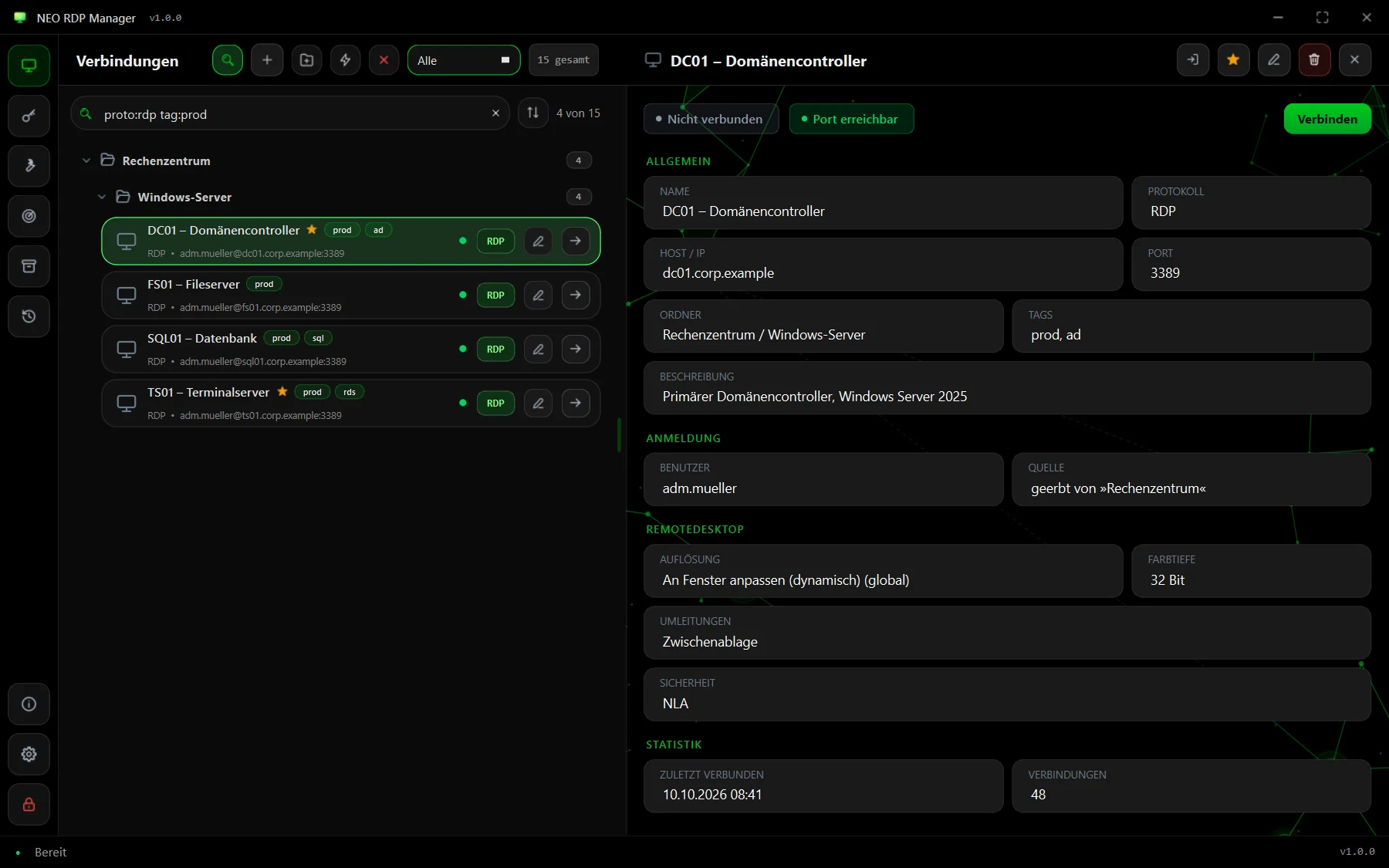
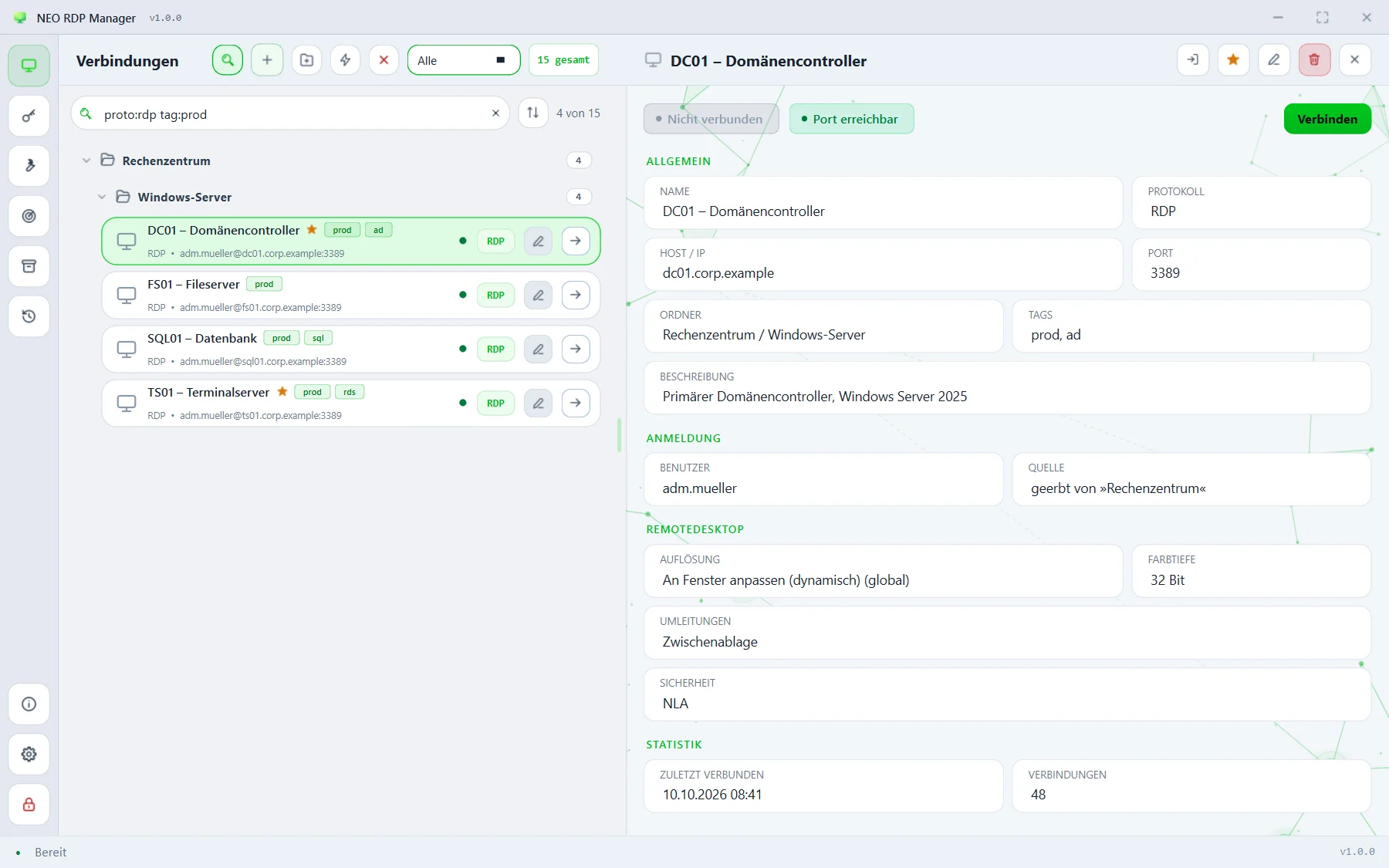
proto:rdp tag:prod – four of fifteen connections remain.Views & sorting
The drop-down in the header narrows the list: all, ★ favourites, recently used, open sessions, reachable, not reachable as well as per protocol and per tag. It combines with the search.
The arrows button next to the search sorts by name, most recently used first, most frequent first or by host. In the same menu you hide the folders (flat list), toggle compact tiles and expand or collapse all folders.
Overview & details
With nothing selected, the right-hand area shows the overview: the number of connections, folders, open sessions and reachable servers, plus a short search help. Clicking a tile shows its details – general data, sign-in including where the credentials come from, the most important protocol options and a small statistic (last connected, number of connections). Top right you'll find connect, another session, Wake-on-LAN, favourite and edit.
Sessions & tabs
Every opened connection becomes a session in the right-hand area; switch between several sessions with the tabs or Ctrl+Tab. Above every session sits the control bar:
- send Ctrl+Alt+Del to the remote session,
- scale on/off (RDP and VNC),
- save screenshot – stored under
Pictures\NEO RDP Manager, - reconnect, full screen (F11) and open in a window of its own (detach),
- show/hide the list (Ctrl+B) for more room and connection details.
A tab's context menu also offers send text …, send text to all terminal sessions … (the same command on several servers), end session and end all others.
Keyboard shortcuts
| Key | Effect |
|---|---|
| Ctrl+F | Search |
| Enter | Connect the selected connection or the first search hit |
| Ctrl+N · Ctrl+Shift+N | New connection · new folder |
| Ctrl+Q | Quick Connect |
| F2 · Ctrl+E | Edit |
| Ctrl+D · Del | Duplicate · delete |
| Ctrl+S · Esc | Save form · cancel or go back |
| Ctrl+W | End the active session |
| Ctrl+Tab · Ctrl+Shift+Tab | Next · previous session |
| F11 | Full screen on/off |
| Ctrl+B | Show/hide the list |
| F5 | Check reachability now |
| Ctrl+L | Lock the vault |
Terminal and VNC sessions keep their own shortcuts: in a shell, Ctrl+W deletes a word instead of closing the tab.