
Connections & folders
Create connections, organise them in folders and pass credentials down through folders.
The connection form
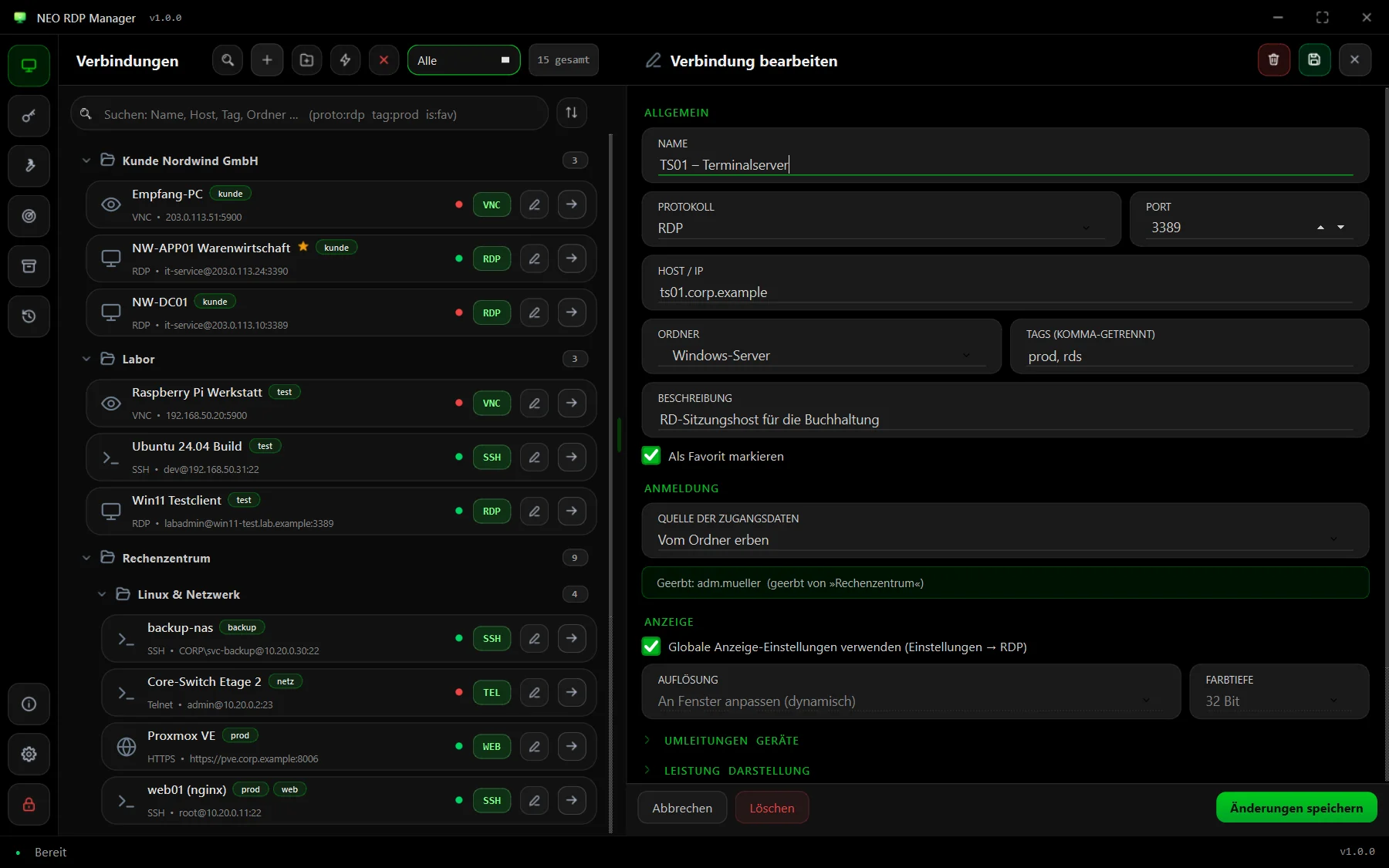
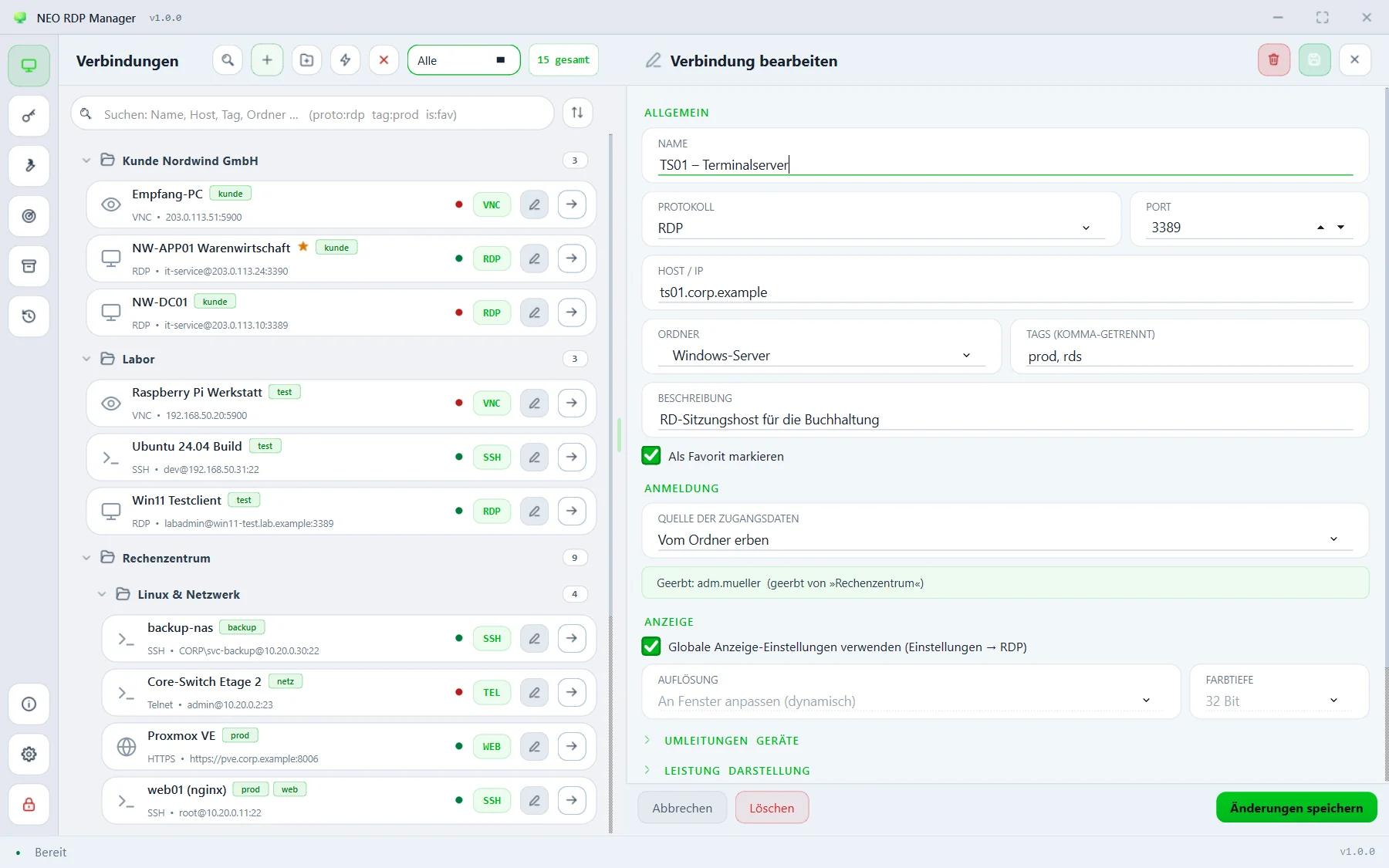
Create a new connection with + in the list header or Ctrl+N; edit an existing one with the pencil on its tile, F2 or Ctrl+E. The form opens to the right of the list; Ctrl+S saves, Esc cancels.
General (Allgemein)
| Field | Meaning |
|---|---|
| Name | The tile's name. Included in search. |
| Protocol (Protokoll) | RDP, SSH, Telnet, RAW, Rlogin, VNC, HTTP, HTTPS, PowerShell or Ext. App. The form shows the matching options of the protocol. |
| Port | Pre-filled with the protocol's default (e.g. 3389, 22, 5900, 5985) and can be overridden. |
| Host / IP | DNS name or IP address of the target. |
| URL path (URL-Pfad) | HTTP/HTTPS only: the path after the host, such as /admin. |
| Folder (Ordner) | The folder the connection lives in. |
| Tags | Comma-separated keywords like prod, sql. They appear on the tile and can be filtered with tag:. |
| Description (Beschreibung) | Free text, shown in the details and included in search. |
| Mark as favourite | A star on the tile; the “★ Favourites” view and is:fav show favourites only. |
Sign-in (Anmeldung)
Under credential source (Quelle der Zugangsdaten) you decide where user and password come from:
- Own credentials (Eigene Zugangsdaten) – user, domain and password right on this connection.
- Stored credential (Gespeichertes Credential) – an entry from stored credentials that any number of connections share.
- Inherit from folder (Vom Ordner erben) – the credentials of the folder (or one above it). The form shows below what is currently inherited.
- None, ask when connecting – store nothing; you sign in when connecting.
Passwords are encrypted with the vault's key as soon as you save.
Protocol-specific options
- RDP: display, redirections & devices, performance & appearance, security & session, Remote Desktop Gateway and start program & RemoteApp – all under RDP sessions.
- Terminal (SSH, Telnet, RAW, Rlogin): private key (SSH), command after connecting, font size, SSH agent forwarding and, for Rlogin, the PuTTY session – see SSH, VNC & other protocols.
- VNC: view only, fit to window and shared session.
- Ext. App: which external tool starts as the session.
Advanced
The collapsible section Advanced (Wake-on-LAN, user field, tools) contains:
- MAC address (Wake-on-LAN) – lets you wake the computer via the context menu entry “Send Wake-on-LAN”.
- User field (Benutzerfeld) – free to use, available in external tools as
%USERFIELD%. - Tool before connecting and tool after disconnecting – automatically starts an external tool, for example to bring a VPN tunnel up and down.
Folders & inheritance
Create folders with the folder icon in the header or Ctrl+Shift+N; they can be nested as deeply as you like. Folder headers show “open/total” and expand or collapse with a click. Drag tiles and whole folders to their new place.
Double-clicking a folder header opens its settings: name, parent folder and the inherited credentials:
- Inherit from the parent folder – keep looking upwards (default).
- Own credentials for this folder – user, domain and password used by every inheriting connection below.
- Stored credential – an entry from the stored credentials.
- None – stop inheritance here – connections below inherit nothing from this point on.
A folder's context menu also offers: open all connections, new connection here, new subfolder, expand/collapse all, export as mRemoteNG file and delete folder.
A connection's context menu
| Entry | Effect |
|---|---|
| Connect / show session | Opens the connection or jumps to its open session. |
| Open another session | A second session of the same connection, for example for a second shell. |
| Connect with options | In full screen, with console session (/admin) or without stored credentials – for this start only. |
| External tools | Starts an external tool with this connection's data. |
| Send Wake-on-LAN | Wakes the computer using the stored MAC address. |
| Edit F2 · Duplicate Ctrl+D | Open the form or create a copy. |
| Add to favourites · Move to | Set the star or move it to another folder. |
| Copy | Host name, name, user name or password to the clipboard – the password is cleared again after 30 seconds. |
| Save as .rdp file | Exports an RDP connection as an .rdp file (without password). |
| Delete Del | Removes the connection after confirmation. |
Quick Connect
Ctrl+Q or the lightning bolt in the header opens Quick Connect – handy for servers you only need once. Enter the target in one of these forms:
rdp://admin@srv01:3390
ssh root@10.20.0.11
srv01:22
https://pve.example.com:8006/
The protocol comes from the prefix or the selection in the dialog. Tick the save option and the connection stays in the list; otherwise it's gone after you disconnect.