
Import & export
Bring connections over from mRemoteNG, RDCMan, .rdp files, PuTTY and Active Directory – and back out again.
All sources
You'll find everything under Import & export in the sidebar.
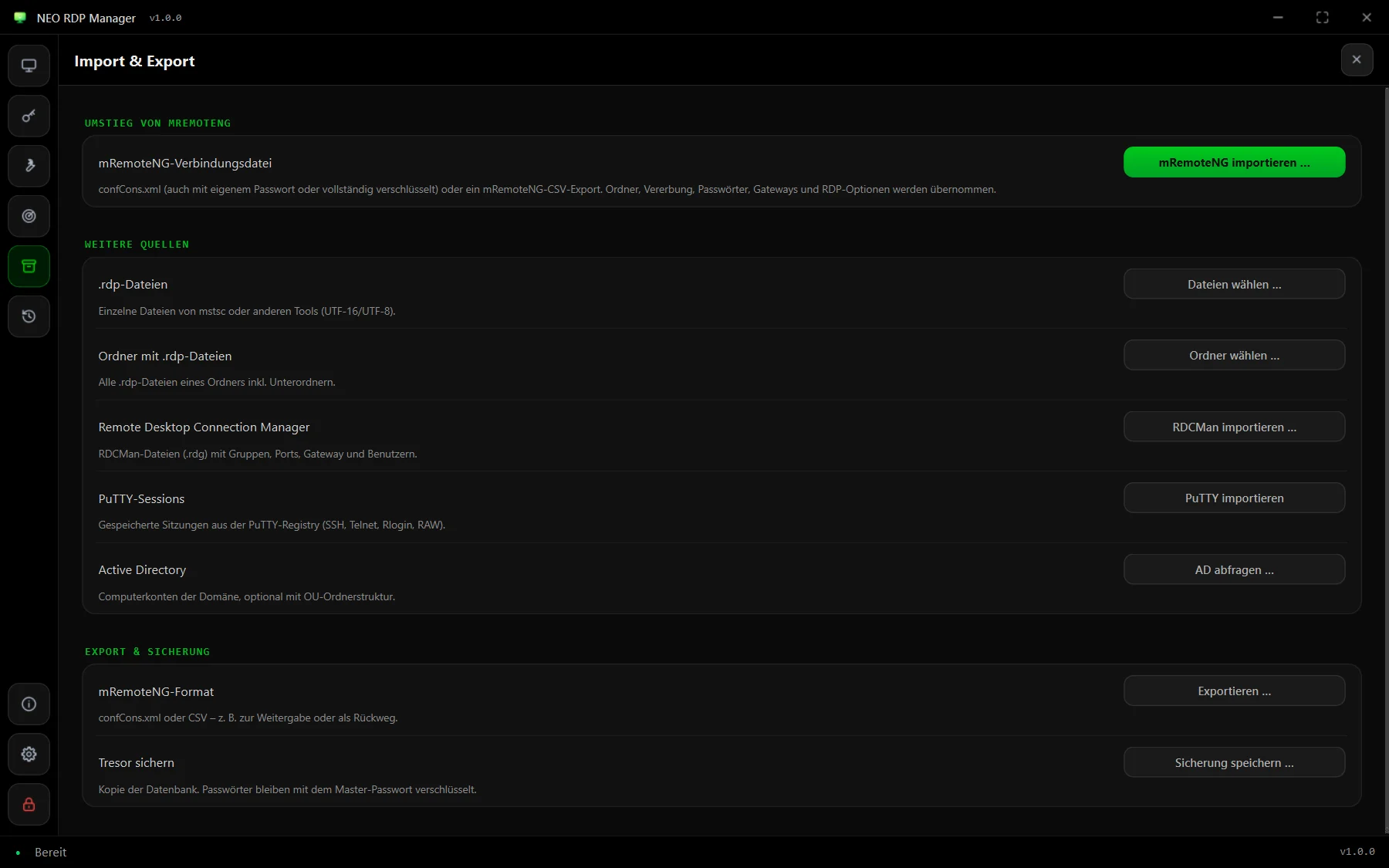
| Source | What is taken over | Passwords |
|---|---|---|
mRemoteNG confCons.xml / CSV | folders, all protocols, inheritance, RDP options, gateway, extras | yes |
| .rdp files | host, port, user, display, redirections, gateway, RemoteApp | no |
RDCMan .rdg | groups as folders, servers, ports, gateway, user and domain | no |
| PuTTY | saved sessions (SSH, Telnet, Rlogin, RAW) | – |
| Active Directory | computer accounts as RDP connections, optionally with OU folders | – |
| Port scan | discovered hosts with the matching protocol | – |
The import preview
Every import ends in the same preview. It shows how many folders and connections of which protocols were found and lists notes – such as entries that couldn't be taken over. You decide:
- Put into a new folder – with a suggested name (e.g. “mRemoteNG” and the date), so the import doesn't mix with what you have.
- Skip existing connections – the same combination of name, host and protocol isn't created twice.
Nothing is saved until you click Import. Passwords that come along are encrypted with your master password right away.
mRemoteNG
The import reads confCons.xml of all common versions – with the default key, a custom password, fully encrypted or in the older CBC format – as well as mRemoteNG's CSV export. The detailed walkthrough is under Switching from mRemoteNG.
.rdp files
“Choose files …” takes over individual files, “choose folder …” every .rdp file in a folder including subfolders. Both encodings are recognised, including the UTF-16 files mstsc saves itself. Encrypted password entries in foreign files are never taken over.
RDCMan (.rdg)
From Remote Desktop Connection Manager files, groups become folders and servers become RDP connections – with display name, port, gateway as well as user and domain. RDCMan binds its encrypted passwords to the original computer or a certificate; they can't be transferred. After the import, best store them once on the folder, see inheritance.
PuTTY & Active Directory
- Import PuTTY reads your Windows user's saved sessions from the registry (
HKCU\Software\SimonTatham\PuTTY\Sessions) and creates them as SSH, Telnet, Rlogin or RAW connections. - Query AD … reads the domain's active computer accounts via LDAP – no RSAT needed. Optionally give a search base (e.g.
OU=Servers,DC=company,DC=local), have the folder structure created from organisational units and limit it to server operating systems. The connections inherit their credentials from the folder – one domain account on the top folder is enough.
Export
- mRemoteNG format: a
confCons.xml(format 2.6, AES-GCM) that mRemoteNG 1.76 and later opens directly. Passwords are encrypted with a file password of your choice – left empty, with mRemoteNG's default. Optionally without passwords or as CSV (careful: passwords in plain text there). - Individual folders are exported via the folder's context menu: “Export as mRemoteNG file …”.
- .rdp file: context menu of an RDP connection → “Save as .rdp file …” (without password).
- Back up vault: a copy of the whole database, see backup.