The remote desktop manager for Windows: RDP sessions as tabs, plus SSH, VNC, Telnet and PowerShell – with an encrypted vault, folders that pass credentials down and import from mRemoteNG, RDCMan and PuTTY.
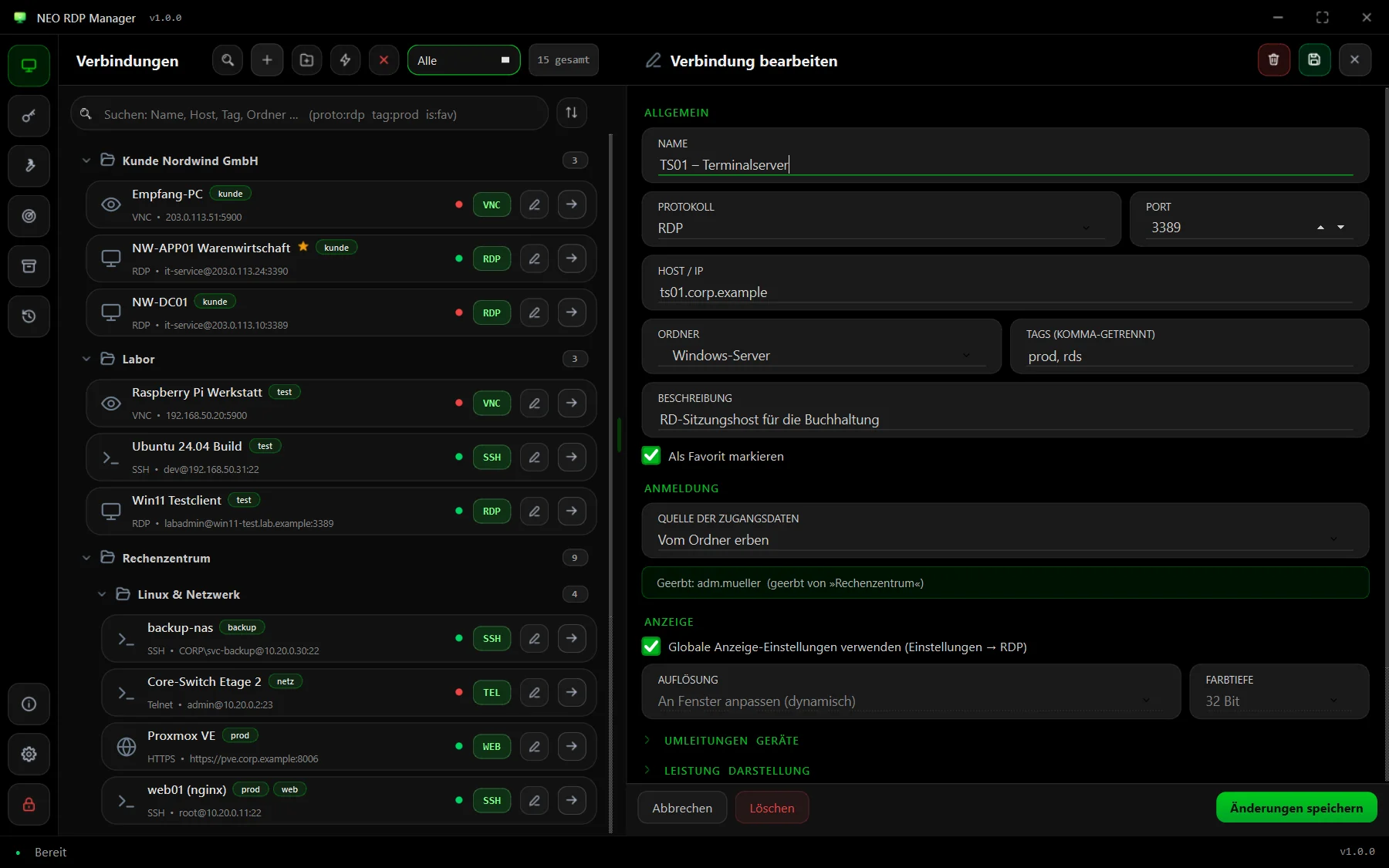
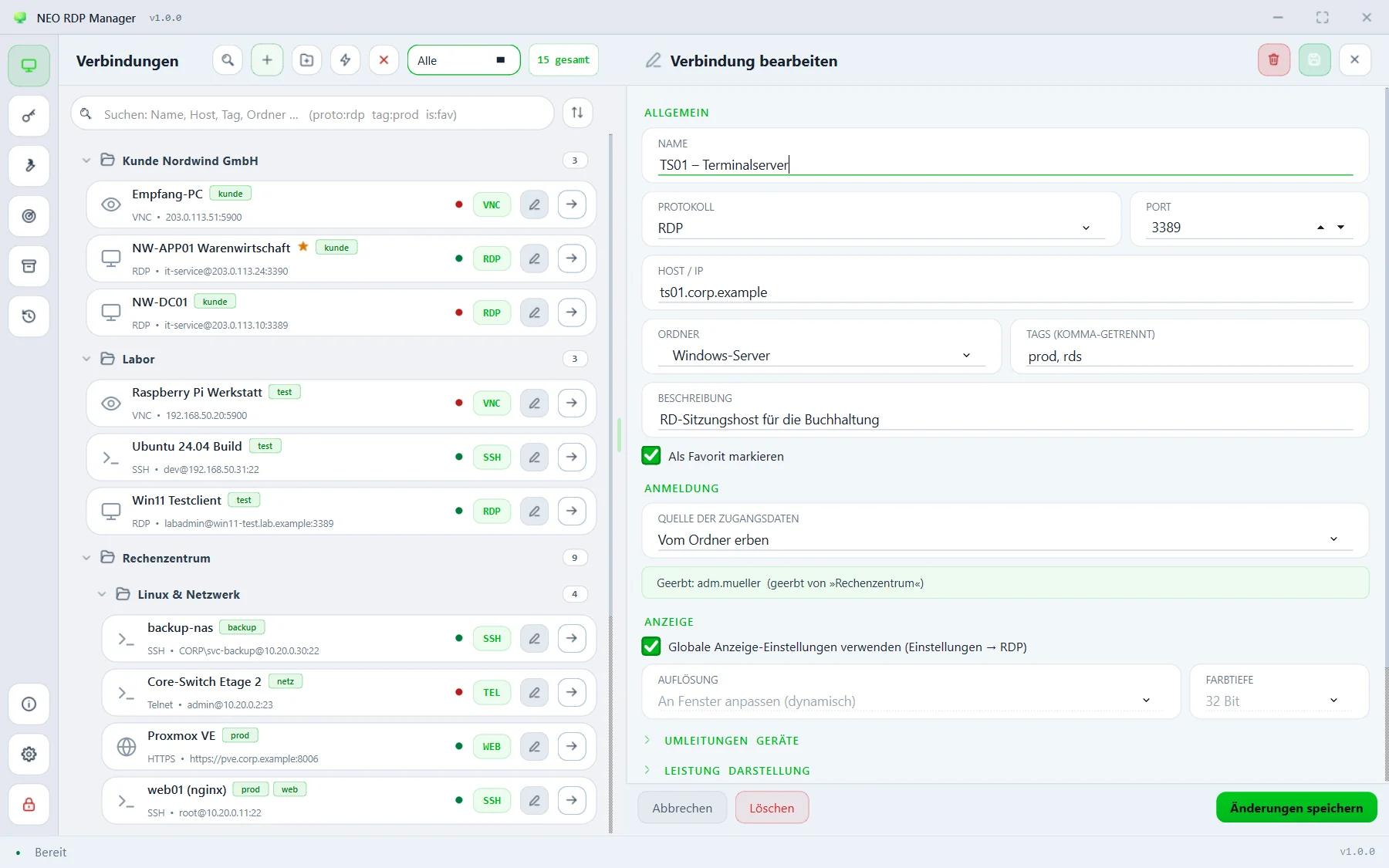
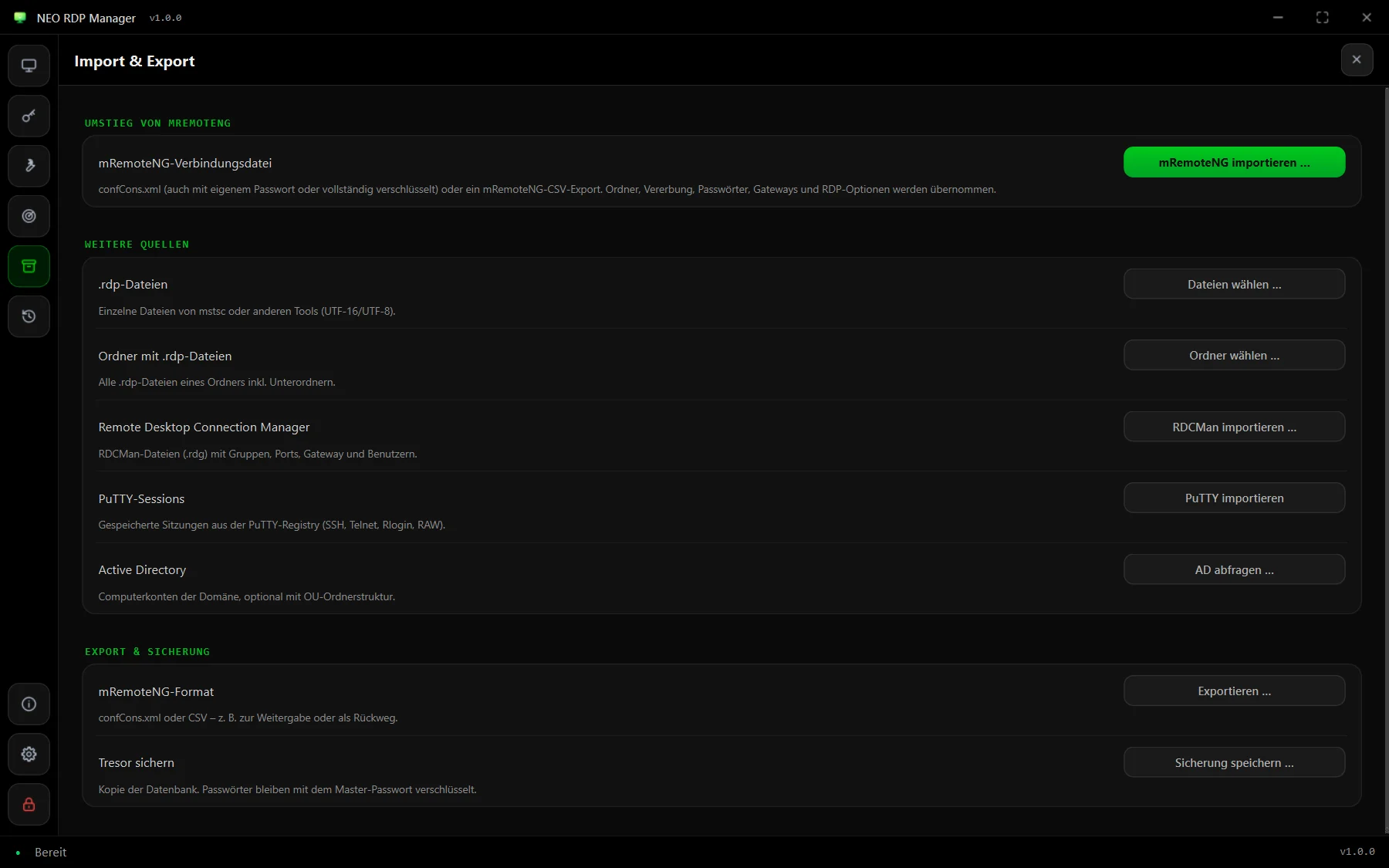
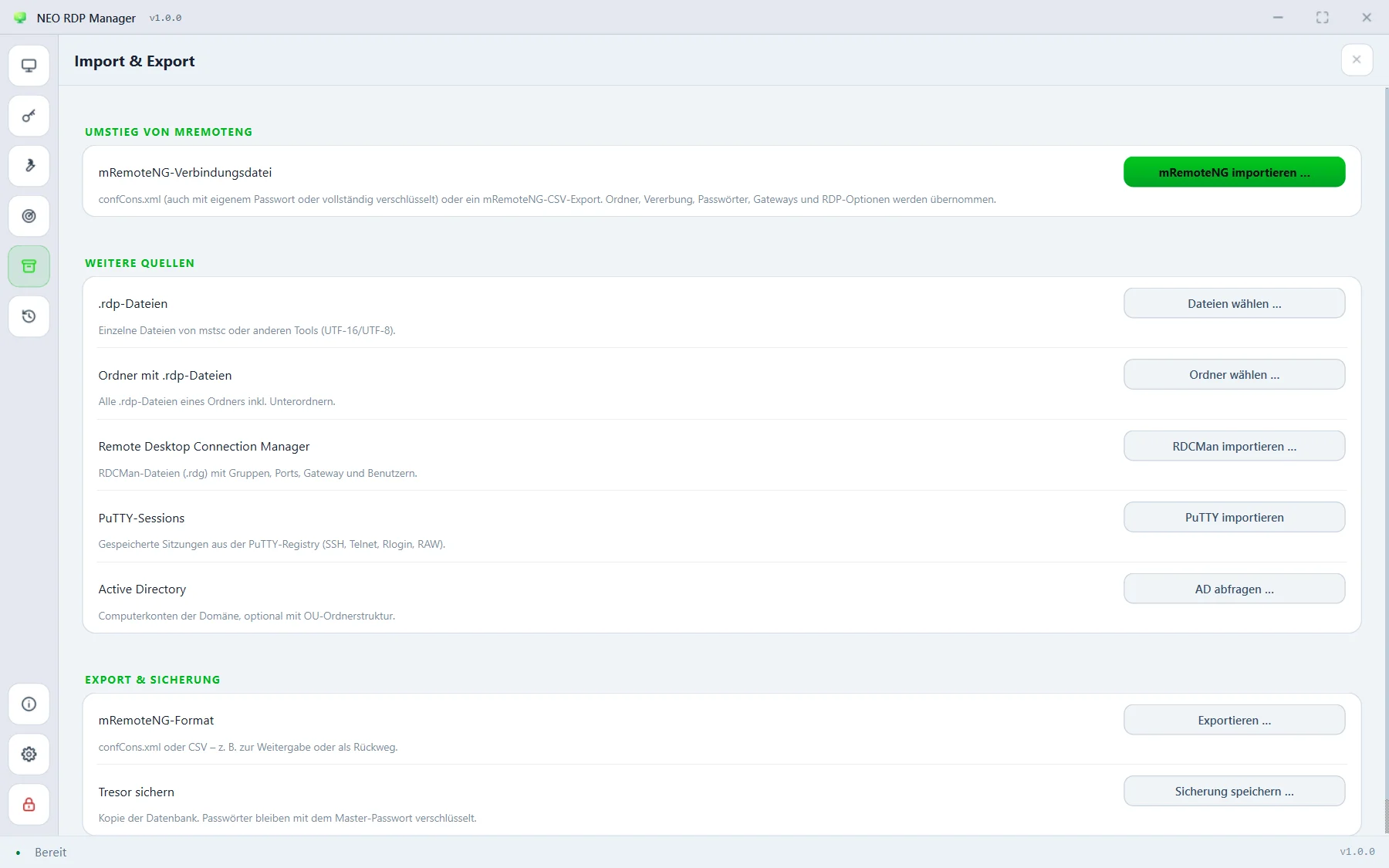
Features
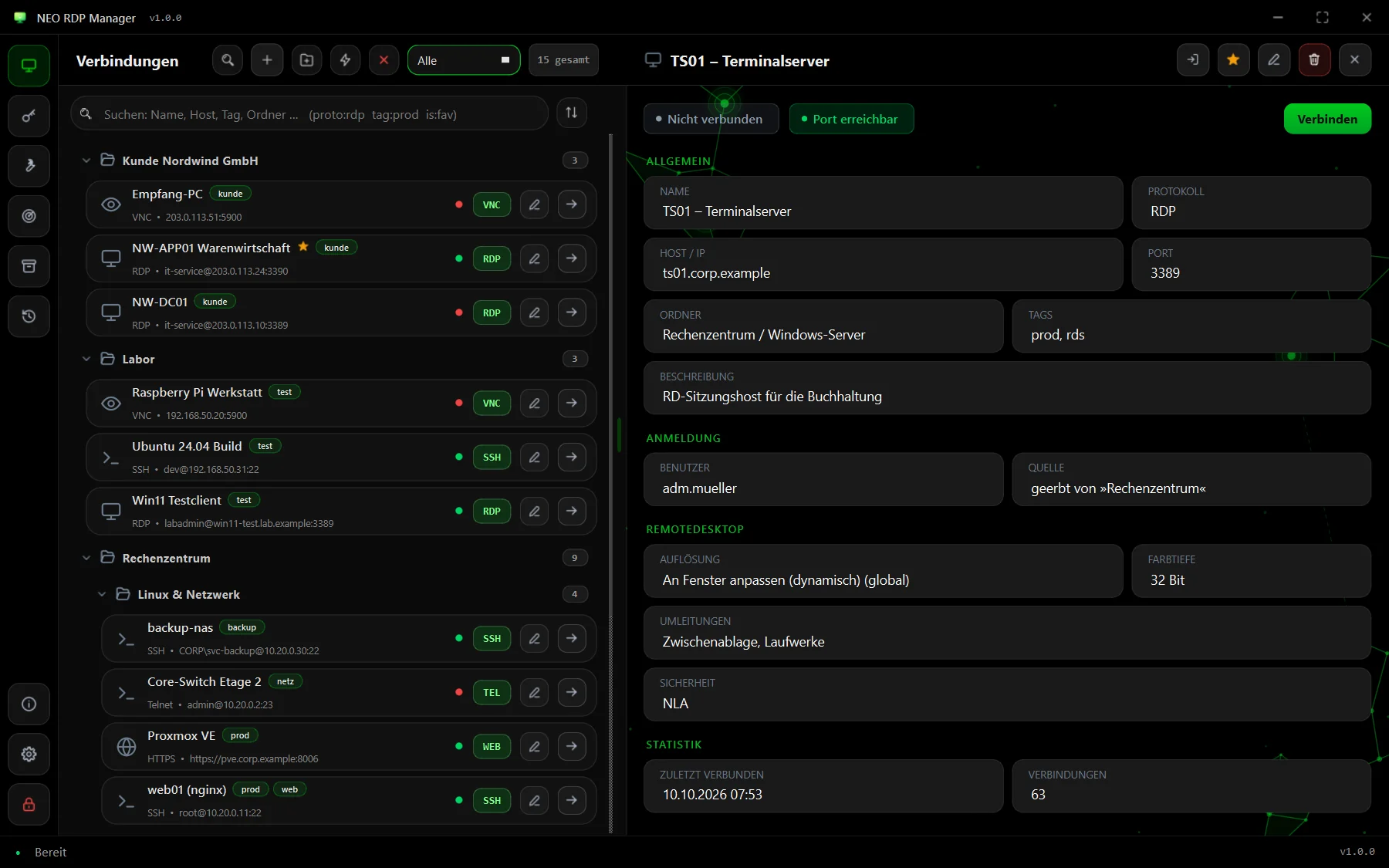
The full feature set of mRemoteNG in a modern interface – with a vault that actually protects your credentials.
Windows' own Remote Desktop Connection, embedded in the window: dynamic resolution, scaling at the push of a button, full screen with a pop-up bar and detaching into separate windows.
One master password protects every credential: scrypt key derivation, AES-256-GCM for each field, automatic locking when idle and instant locking with Ctrl+L.
Import confCons.xml – even with a custom password or fully encrypted – with folders, inheritance, passwords, gateways and RDP options. And export it again whenever you like.
A built-in terminal with host key checking, a built-in VNC client, Telnet with auto-login and PowerShell remoting – each as a tab next to your RDP sessions.
Store credentials once on a folder – every connection below inherits them, across any number of levels. Reusable credentials for service accounts come on top.
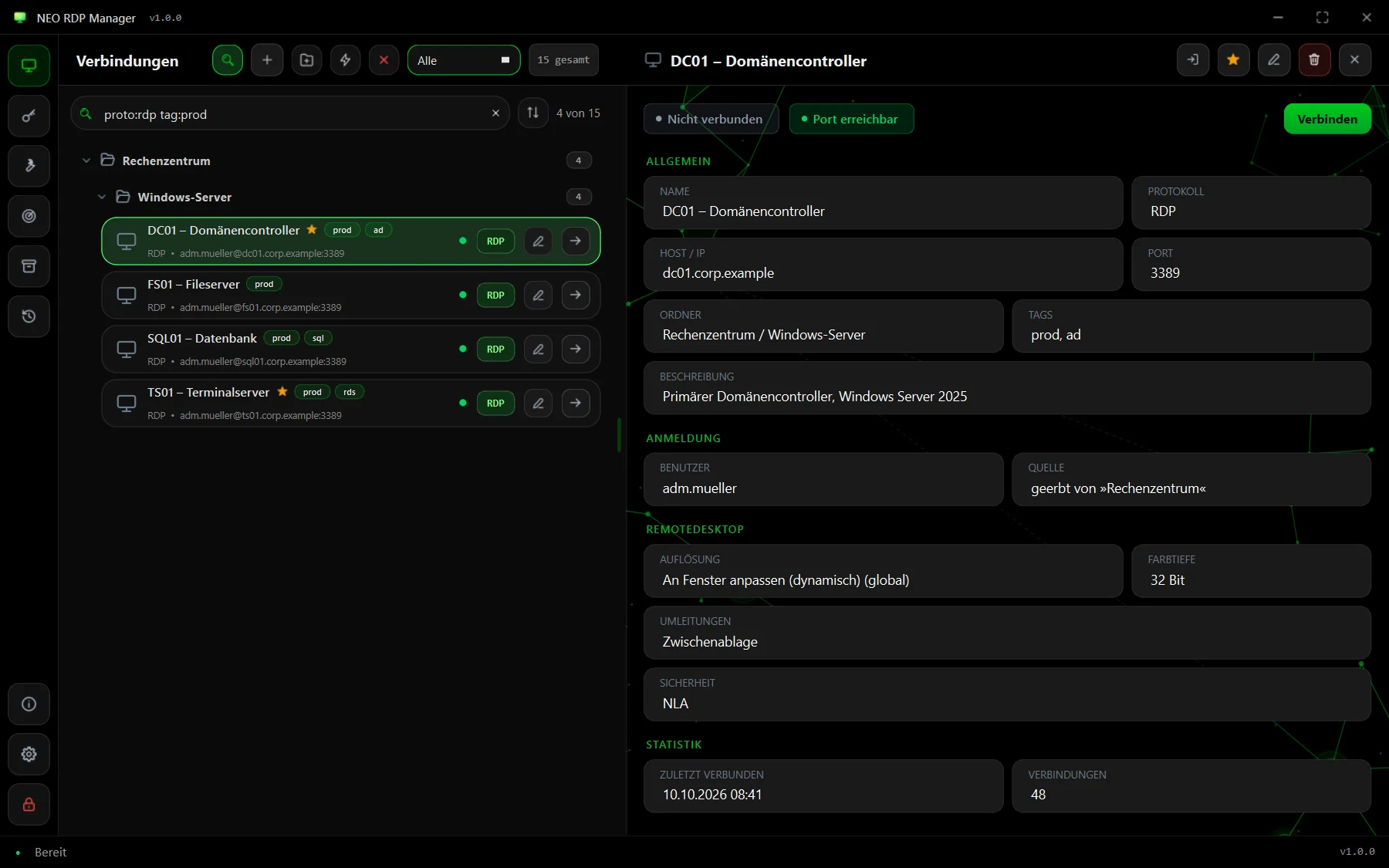
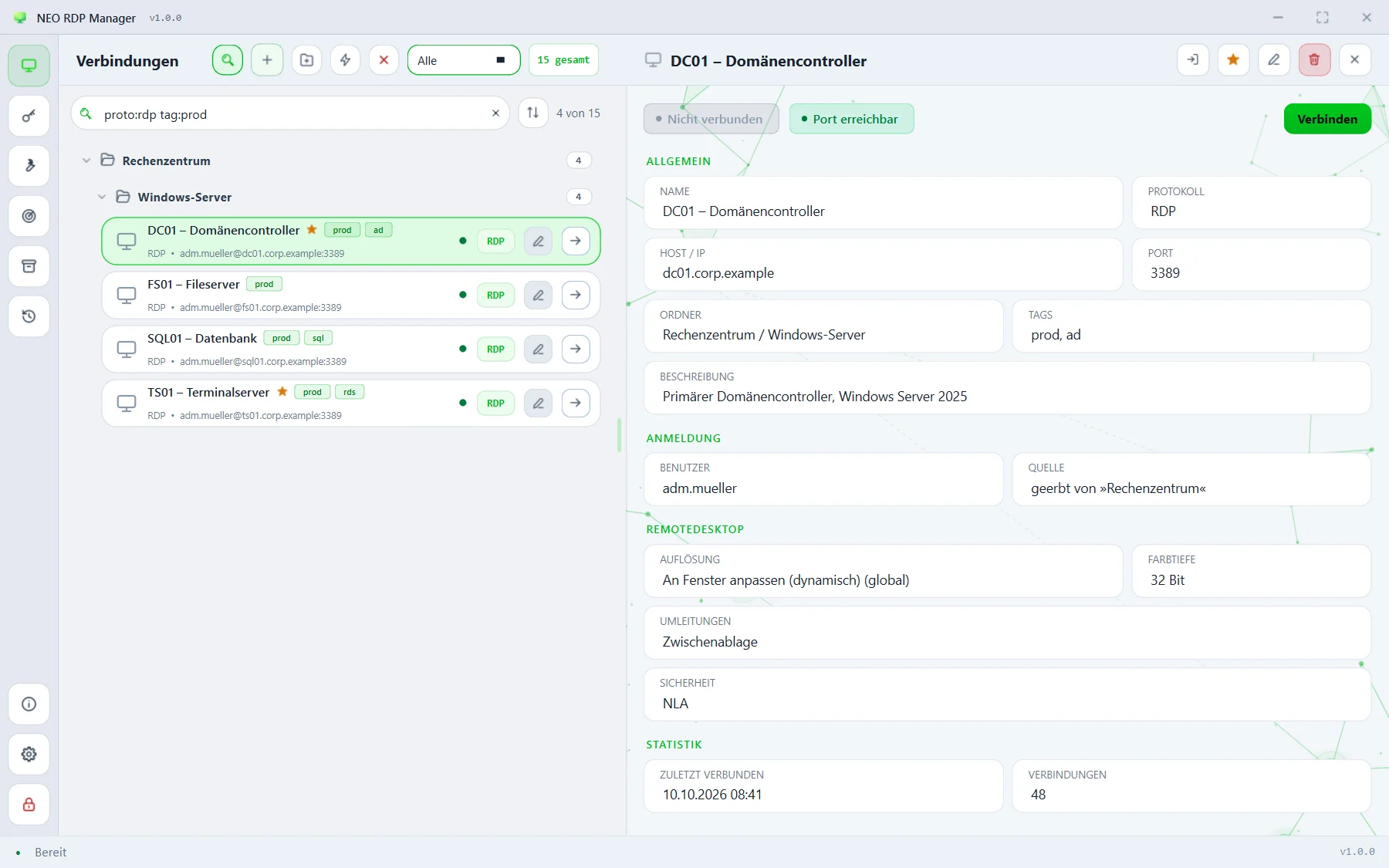
Free words plus filters such as proto:rdp, tag:prod, folder:customer or is:fav. Enter connects to the first hit – no mouse needed.
The list is virtualised: 1,000 connections build up in about a second, and search responds to every keystroke within milliseconds.
A background port check shows on every tile whether the server answers – without a login attempt and without extra software.
RDP connections start without the “Unknown remote connection” dialog – and with every redirection you configured.
External tools with variables such as %HOSTNAME%, a port scan that creates connections, Wake-on-LAN and a session log with CSV export.
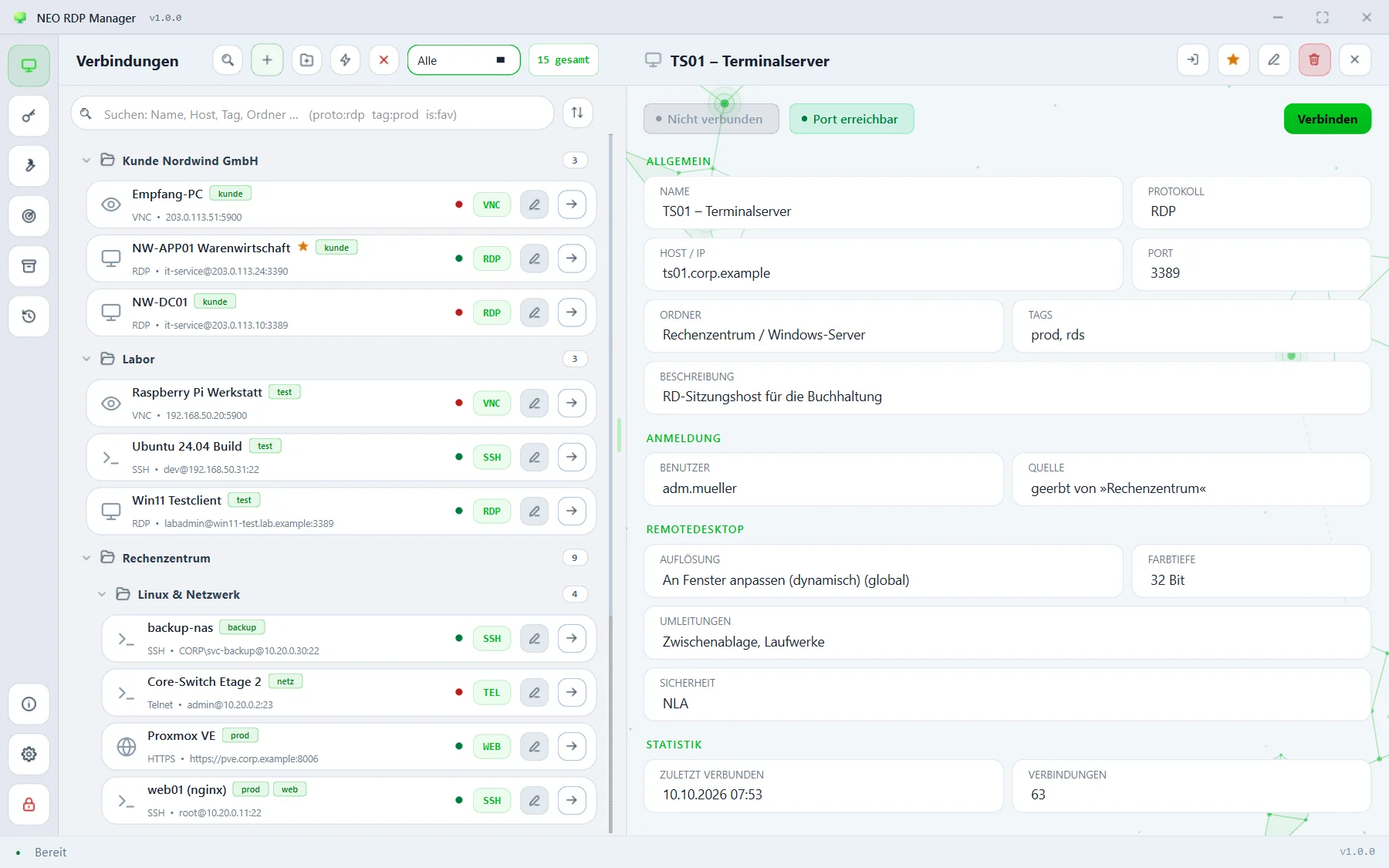
Four colour schemes – black, blue, grey and light –, an accent colour of your choice and a subtle network of linked nodes in the background.
No cloud, no account, no telemetry: the app only talks to your servers. Everything lives in a local database – optionally portable, next to the EXE.
How it works
NEO RDP Manager uses the Remote Desktop Connection built into Windows and embeds its window as a tab. That's why everything mstsc can do just works: NLA, RD Gateway, smart cards, RemoteApp and multiple monitors.
# What happens when you click “Connect”
cmdkey /generic:TERMSRV/ts01.corp.example /user:CORP\adm.mueller /pass:••••••
mstsc /v:ts01.corp.example
# → the window is embedded as a tab, the Credential Manager entry is deleted againThe password comes encrypted from the vault, sits in the Windows Credential Manager only while the connection is being set up and never ends up in an .rdp file or a log.
Resolution, redirections, gateway and the rest are handed over through a briefly replaced Default.rdp, which the app restores bit for bit afterwards. That keeps the warning dialog for unsigned .rdp files away.
Switching
Whether mRemoteNG, RDCMan, individual .rdp files or PuTTY – the import brings over folders, users and options in one go.
confCons.xml (AES-GCM, legacy format, custom password, full-file encryption) and CSV – including passwords and inheritance.
.rdg files with groups, ports, gateway and users. RDCMan ties passwords to the old computer, so you enter them once more.
One by one or a whole folder with its subfolders – including the UTF-16 files mstsc saves itself.
Saved PuTTY sessions from the registry and the domain's computer accounts, optionally with the OU structure as folders.
FAQ
A remote desktop manager for Windows. It organises RDP, SSH, VNC, Telnet, PowerShell and web connections in folders, opens them as tabs in one window and stores the credentials encrypted in a vault.
Yes. The import reads confCons.xml – even with a custom password or fully encrypted – as well as mRemoteNG's CSV export, and brings over folders, inheritance, passwords, gateways and RDP options.
Locally, in an SQLite database under %APPDATA%\NeoRDPManager. Every password is encrypted on its own with AES-256-GCM; the key is derived from your master password and only lives in memory while the vault is unlocked.
Windows warns about unsigned .rdp files. NEO RDP Manager instead starts mstsc directly with the host and hands over the options briefly through Default.rdp, which is restored bit for bit afterwards. The classic method via an .rdp file can be chosen in the settings.
No. RDP uses Windows' own mstsc.exe; SSH, Telnet and VNC are built in. Only Rlogin uses PuTTY, if it is installed.
The app's interface is currently in German. This website and the documentation are available in German and English.
Get started
Version 1.0.0 of 10 October 2026 · MSI installer for Windows 10 and 11